
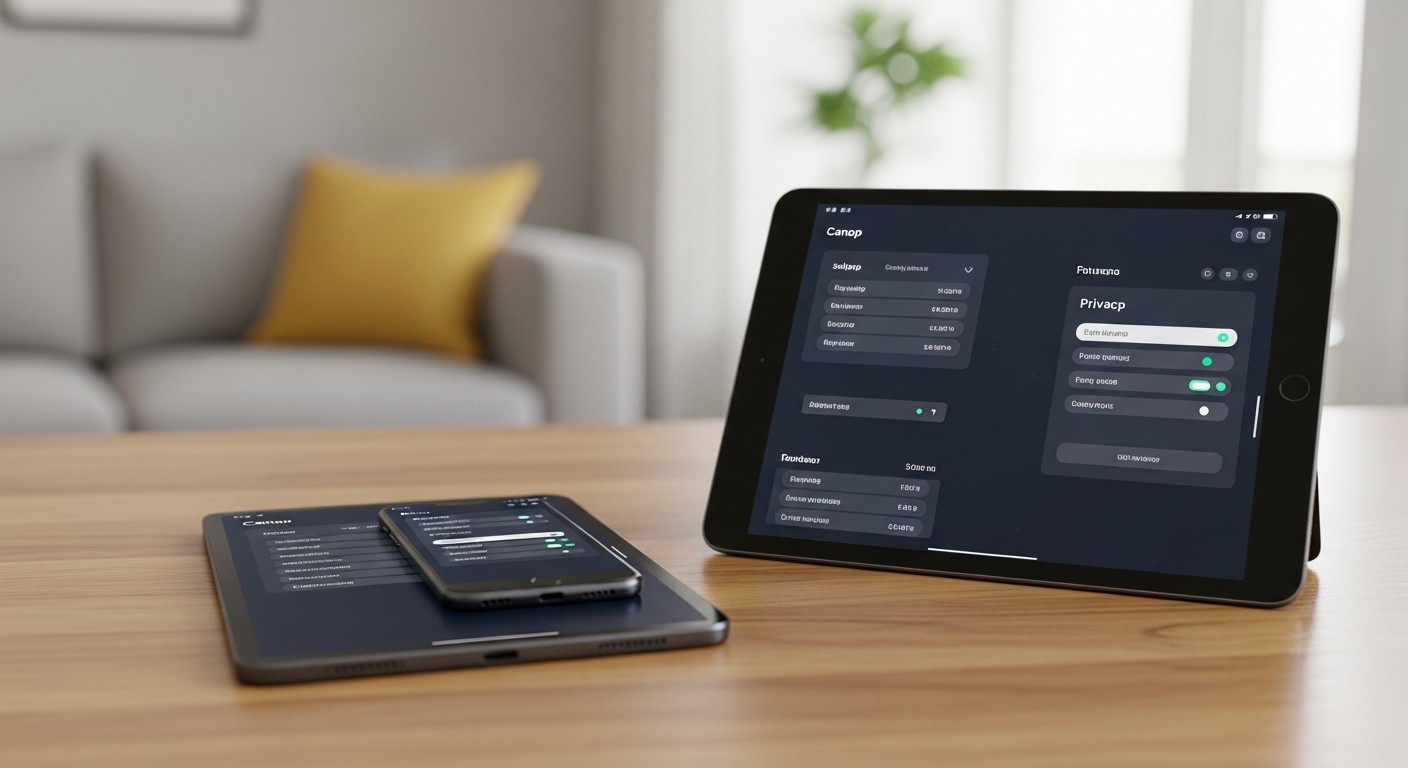
When it comes to navigating the digital world, understanding how to keep your personal information safe is just as important as knowing how to avoid online scams. While our broader resources from Mike Potter Programming and Technology Solutions cover the full spectrum of online risks, this guide is made especially simple for non-tech phone, iPad/tablet & computer users, focusing specifically on securing your devices.
Many situations involve sharing personal details or granting permissions, and knowing what to look for can make a real difference. Common scenarios include downloading new apps, browsing websites, or even just checking your email. What usually causes problems is a lack of awareness about default settings or the potential impact of seemingly small actions.
Understanding Privacy Settings on Your Devices
Your phone, tablet, and computer all come with built-in privacy settings designed to protect your information. These settings control what apps and websites can access, from your location to your contacts.
Checking Your Device’s Main Privacy Controls
-
For Phones and Tablets (iOS/iPadOS):
- Go to ‘Settings’.
- Scroll down and tap ‘Privacy & Security’.
- Here, you’ll find options like ‘Location Services’, ‘Contacts’, ‘Photos’, ‘Microphone’, and ‘Camera’. Each of these can be reviewed to see which apps have access. For example, if a simple game wants access to your photos, that might be a red flag.
-
For Phones and Tablets (Android):
- Open ‘Settings’.
- Look for ‘Privacy’ or ‘Security & Privacy’.
- You’ll typically find a ‘Permission Manager’ where you can see which apps have access to specific data types (like location, camera, microphone, etc.). It’s a good idea to periodically check this list.
-
For Computers (Windows):
- Click the ‘Start’ button, then ‘Settings’ (the gear icon).
- Select ‘Privacy & security’.
- On the left, you’ll see categories like ‘Location’, ‘Camera’, ‘Microphone’, ‘Notifications’, and ‘Account info’. Go through these to manage what apps can access.
-
For Computers (macOS):
- Click the Apple menu in the top-left corner, then ‘System Settings’ (or ‘System Preferences’ on older versions).
- Scroll to ‘Privacy & Security’.
- You’ll find sections for ‘Location Services’, ‘Contacts’, ‘Calendar’, ‘Photos’, ‘Camera’, ‘Microphone’, and more. Review these settings carefully.
The goal here is to limit access to only what’s absolutely necessary for an app or service to function. If you’re unsure, it’s often safer to deny permission until you understand why it’s needed.
Managing App Permissions Effectively
Every time you download a new app, it usually asks for certain permissions. It’s easy to just tap ‘Allow’ without thinking, but this can give apps more access than they truly need.
Reviewing Permissions for Individual Apps
-
On Mobile Devices:
- Go to ‘Settings’, then ‘Apps’ or ‘Applications’.
- Tap on an individual app.
- Look for ‘Permissions’. Here, you can see and adjust what the app is allowed to do. For instance, a weather app probably doesn’t need access to your contacts or microphone.
-
On Computers:
- Similar to the main privacy controls, you can often manage app-specific permissions within the ‘Privacy & Security’ section of your system settings. Some apps also have their own internal privacy settings.
When an app asks for permission, consider if that access makes sense for the app’s function. A photo editing app needs access to your photos, but does a flashlight app need your location or microphone? Probably not. Denying unnecessary permissions doesn’t usually break the app; it just restricts what it can do with your personal data.
Basic Device Security Habits
Beyond settings, adopting a few simple habits can significantly improve your device security. These practices are straightforward and don’t require technical expertise.
Essential Security Practices
-
Use a Strong Passcode or Biometrics: Always set up a strong passcode (more than 4 digits), facial recognition (Face ID), or fingerprint (Touch ID/fingerprint scanner) to unlock your device. This is your first line of defense if your device falls into the wrong hands.
-
Keep Your Software Updated: Software updates often include important security fixes. When your device prompts you to update, it’s generally a good idea to do so, especially for security patches. These updates address vulnerabilities that could otherwise be exploited.
-
Be Careful with Public Wi-Fi: Public Wi-Fi networks (like those in cafes or airports) are often less secure. Avoid doing sensitive activities like online banking or shopping when connected to public Wi-Fi. If you must, consider using a Virtual Private Network (VPN) for an added layer of protection, though this can be a more advanced step.
-
Backup Your Data: Regularly backing up your phone, tablet, or computer means that if something goes wrong (like a lost device or a malware attack), you won’t lose your important photos, documents, and contacts. Cloud services (like iCloud, Google Drive, OneDrive) or external hard drives are common options.
-
Install Antivirus/Anti-Malware (for Computers): While mobile devices have strong built-in security, computers, especially Windows PCs, benefit greatly from reputable antivirus software. This helps protect against viruses, ransomware, and other malicious programs.
These habits form a robust foundation for keeping your devices and the information on them secure. They are simple steps that anyone can take, regardless of technical background.
Recognizing Common Threats and Staying Vigilant
Even with strong settings and good habits, staying aware of common online threats is crucial. This vigilance complements your device’s security features.
Signs of Potential Issues
-
Unexpected Pop-ups or Ads: If you’re suddenly seeing many pop-up ads or strange messages, especially when not browsing, it could indicate unwanted software.
-
Slow Performance: A device that suddenly becomes very slow, drains battery quickly, or heats up unusually might be running unwanted background processes.
-
Unfamiliar Apps: Regularly check your list of installed apps. If you see an app you don’t recognize or didn’t install, it might be malicious.
-
Phishing Attempts: Be wary of emails, texts, or calls asking for personal information, login details, or urging you to click suspicious links. These are common tactics used in online scams, a topic more fully explored in our main guide to avoiding online scams from Mike Potter Programming and Technology Solutions.
By combining careful management of your device’s privacy settings and app permissions with these basic security habits and a general awareness of common threats, you can significantly reduce your risk of falling victim to digital dangers. Mike Potter Programming and Technology Solutions understands that technology can seem complex, and our goal is to simplify these essential protective measures for everyone, ensuring your peace of mind in the digital age.